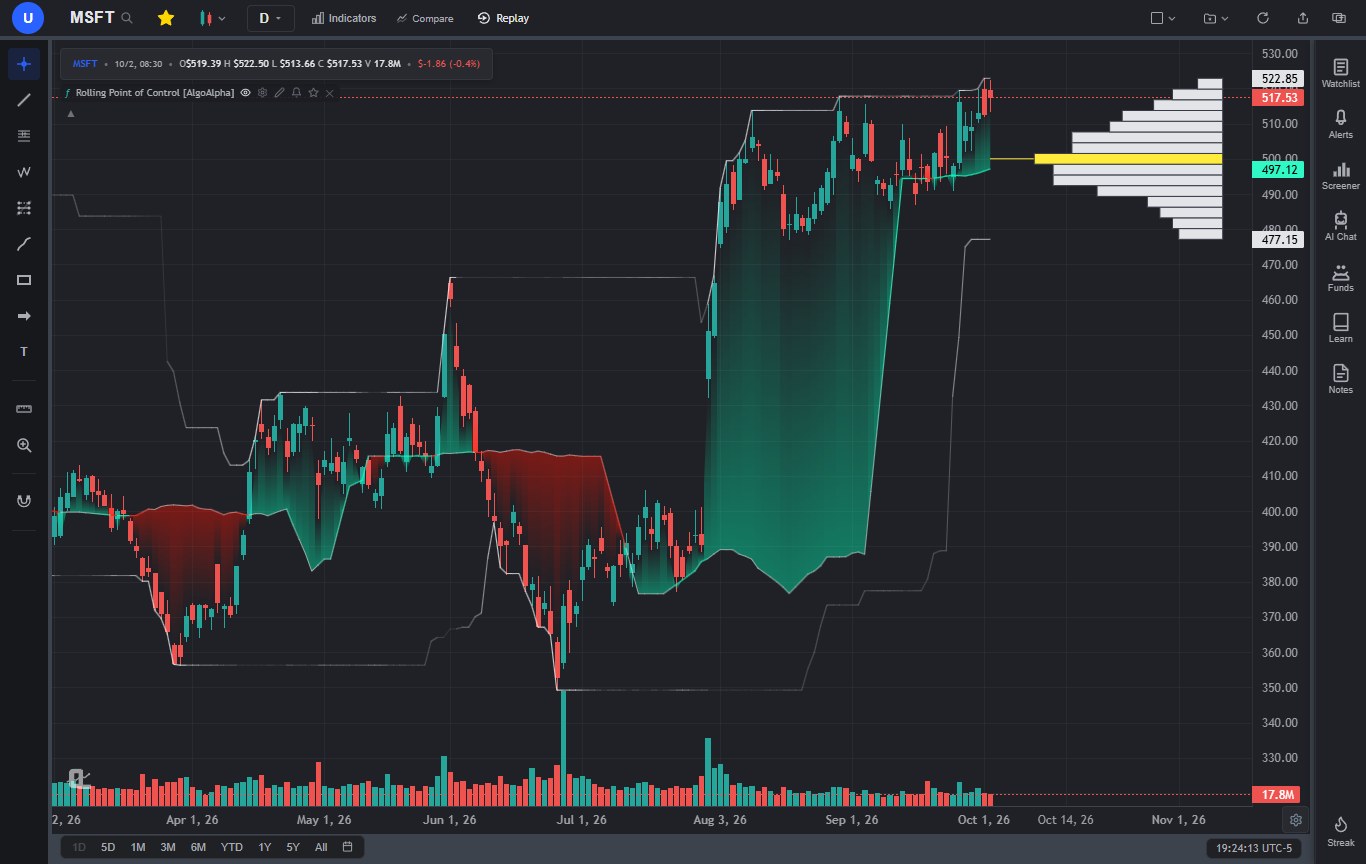
This is the guide we send people when they ask "what can ChartingLens actually do?" It's long on purpose. Every panel, every AI tool, every alert type and every plan limit is in here, along with the questions users ask us most often, answered at the end. Skim the contents, jump to what you need, and come back when you hit the next thing you're curious about.
A bit of context first. ChartingLens is used every day by a large trader community that spans day traders, swing traders, options traders and long-term investors, and a lot of what you'll read below exists because someone in that community asked for it. It works with any brokerage, it has comprehensive multi-asset market coverage across stocks, ETFs, crypto, forex, metals and indices around the world, and it runs on production-grade infrastructure that has been battle-tested at scale. Between this guide, the FAQ, the Learn courses and an AI that answers platform questions for free, the documentation and learning resources are extensive, so you rarely have to wait on anyone for an answer. We're not a broker. You chart and research here, then trade wherever you already trade.
1. Your First 10 Minutes
Create a free account (no card needed) and the chart opens on a default symbol. Here's the lay of the land, left to right:
- Top toolbar - the symbol name (click it, or just start typing anywhere, to search), the favorite star that adds the chart to your watchlist, chart type, timeframe, Indicators, Compare and Replay. On the right: Chart Layout, Save & Load Layouts, refresh, share and the new-window button.
- Left toolbar - the drawing tools, grouped into cursors, lines, Fibonacci and Gann, patterns, forecasting and measuring, brushes, shapes, arrows, and text and notes, plus the magnet, measure and zoom tools.
- The chart - every indicator gets a legend row at the top left with its own controls. The bottom left holds the range bar (1D, 5D, 1M, 3M, 6M, YTD, 1Y, 5Y, All, or a custom range) and the bottom right holds the clock (click it to change your timezone) and the chart gear.
- Right sidebar - Watchlist, Alerts, Screener, AI Chat, Funds (hedge funds and Congress), Learn, Notes and your daily Streak.
Press Ctrl+K (Cmd+K on a Mac) at any time for one search box that finds symbols first and, below them, indicators, timeframes, actions and an "Ask AI" option. Prefer a guided tour? Replay the welcome tour from the account bubble at the top left.
2. Ask the AI Where Anything Is
Here's the habit that makes the rest of this guide easier. The AI Chat knows the platform. It answers from a verified map of every button, panel and setting, and it tells you exactly where to click and whether a feature is free or Premium. So before you go hunting through menus, ask.
- "What can you do?" - the full list of what the assistant can do, with example prompts.
- "Where are the alerts?", "How do I open bar replay?", "How do I turn on extended hours?", "How do I change the timezone?", "How do I save my layout?"
- "How do I cancel my subscription?", "How do I contact support?", "What markets do you cover?"
These answers are instant and don't use an AI credit. Ask as many as you like.
3. Charts, Markets, Timeframes and Layouts
Every market, free on every plan
Charting is free for everyone, everywhere. That includes US stocks and ETFs, international stocks from the major exchanges (type the ticker with its suffix: BHP.AX for the ASX, VOD.L for London, SHOP.TO for Toronto, 0700.HK for Hong Kong), crypto pairs with live streaming, broad forex coverage, spot gold, silver, platinum and palladium, and index and commodity CFDs such as US30, SPX500, NAS100, DE30, UK100, WTI and Brent. There are macro symbols too: Treasury yields (US02Y, US10Y, US30Y), Bitcoin and Ether dominance (BTC.D, ETH.D), and any ratio you type as A/B, such as AAPL/MSFT or GLD/SPY.
Chart types
The Chart Type button covers bars, candles, hollow candles, Heikin Ashi, line, step line, area, baseline, columns and Equivolume, all free, plus Volume Candles on Premium. If you're new to reading them, our beginner's guide to stock charts walks through what each one shows.
Timeframes, history and extended hours
The timeframe menu runs from 1-minute to yearly. Custom timeframes Premium let you type any interval, such as 2h, 45m, 3d or 2W. How far back you can scroll depends on the timeframe: daily charts go back decades, hourly and 4-hour about two years, US stocks get about two years of 5 to 30-minute bars, forex about a year, and 1-minute charts show the most recent week (two weeks for US stocks).
Extended hours Premium adds pre-market and after-hours candles to intraday US charts (chart gear at the bottom right, then Show extended hours). And if you want hourly candles that start on the clock hour instead of 9:30, open Chart settings from the same gear and switch Hourly candles to clock mode.
Multi-chart layouts and saved layouts
Chart Layout Premium (top toolbar, right side) splits the screen into up to three charts in eight arrangements, each with its own symbol and timeframe. When you add an indicator, you choose whether it goes on the selected chart or all of them. Drawing Sync shows a drawing on every chart with the same symbol.
Save & Load Layouts captures your whole workspace: the arrangement, symbols, timeframes, every indicator (custom and converted ones included) and your drawings. Free keeps one layout, Premium 10, Pro unlimited. When you save, you can also bind a layout to a symbol so it loads automatically whenever you open that ticker.
Everything you build is saved to your account. If you work on more than one device, switch on Multi-device sync (chart gear, Chart settings) and your layouts, drawings and indicators mirror between devices live. Watchlists sync everywhere regardless.
Compare, appearance and the small stuff
- Compare overlays other symbols on the same percentage scale, on their own price scale, or in a separate pane. Comparisons aren't saved with layouts, so re-add them after a reload.
- Chart gear (bottom right): auto scale, log, percentage and indexed-to-100 scales, invert, volume on or off, extended hours, and the price-axis alert "+" button.
- Chart settings: candle, line and volume colors, candle opacity, indicator name tags on the price scale, the Extended chart view that gives the chart more room, hourly candle alignment and Multi-device sync.
- Light or dark theme from the account bubble, and a timezone picker on the clock.
- Share exports the chart as an image (or opens the share sheet on a phone), and Ctrl+V pastes an image straight onto the chart.
- The new-window button opens a second copy of ChartingLens for a second monitor.
4. Indicators and Drawing Tools
The built-in indicator library
Click Indicators for a large built-in library, organized into Favorites, Saved, Trend, Momentum, Volatility, Volume and Pattern tabs, with a search box that finds everything. Beyond the classics (RSI, MACD, Bollinger Bands, Ichimoku, VWAP and Anchored VWAP, Supertrend, Stochastic, ADX, ATR, OBV, Volume Profile, Pivot Points and many more) there are upgraded Plus, Pro, Smart and Master editions, Smart Money tools such as Fair Value Gaps, Market Structure, Liquidity Sweeps and Supply & Demand, and the Master suite for harmonics, Elliott Waves and chart patterns. Auto Pattern Recognition and Volume Profile Visible Range are Premium. Free charts hold 3 indicators at a time, and Premium has no cap.
Every indicator's legend row has the same controls: hide, settings, and remove. Settings cover inputs, colors and line styles, price source, opacity, an extra moving average on the indicator's output, and which pane it sits in, including sharing a pane with another oscillator. Panes can be moved, collapsed and maximized.
A complete drawing toolkit
The left toolbar holds a complete drawing toolkit: trendlines, rays, channels and pitchforks; the full Fibonacci and Gann families with your own custom levels; harmonic patterns, head and shoulders, ABCD, three drives and five kinds of Elliott wave; long and short position tools, Price Range, Anchored VWAP with bands, and fixed-range and anchored volume profiles; brushes, shapes, arrows, callouts, notes and price labels. Every tool is free.
- Click Apply in a tool's settings and those choices become its default for next time.
- The magnet (off, weak or strong) snaps points to candles.
- Ctrl+Z undoes and Ctrl+Y (or Ctrl+Shift+Z) redoes. Esc cancels a drawing in progress.
- Drag your most-used tools onto the favorites bar.
5. Pine Script and thinkScript: Bring Your Own Indicators
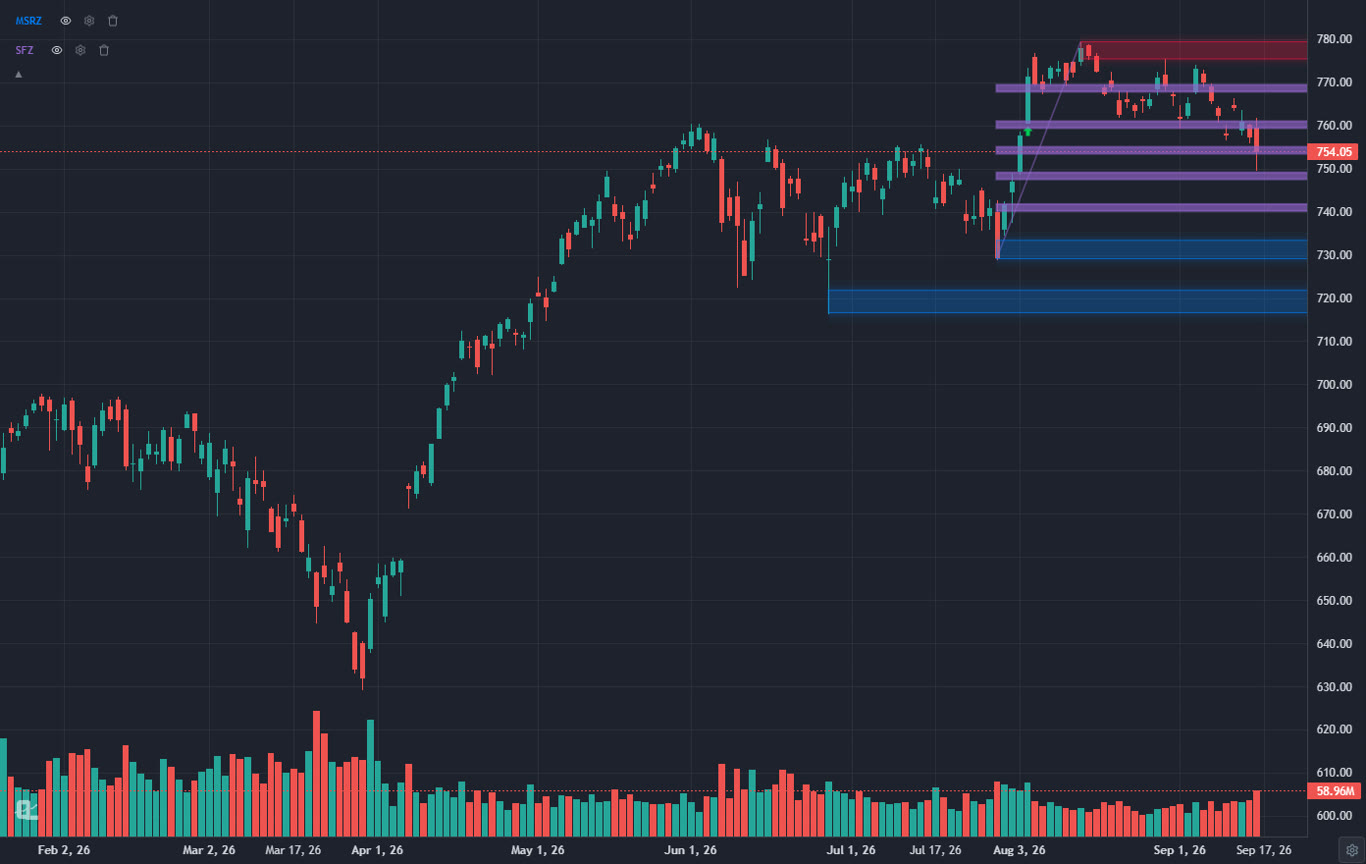
If you have an indicator you rely on, you can bring it with you. Paste the Pine Script source into the AI Chat Premium and it's converted into a live, native indicator on your chart in a second or two. Pine v2 through v6 are supported, including plots, shapes and characters, candles and bar coloring, background colors, plain and gradient fills, lines, boxes, labels, polylines, tables, higher-timeframe and lower-timeframe data, other symbols, strategies with entries, exits, stops and targets, and alertcondition(). Conversion doesn't use an AI credit.
We put a lot of work into making converted scripts look the way their author designed them. Gradient fills fade between their two colors, every shape style (triangles, diamonds, flags, crosses, label bubbles, arrows scaled to the signal, single characters) is drawn at its own location and size, area, histogram, column and cross plots each keep their style, boxes keep their colors, and drawings that sit in the right margin, like a volume profile, stay put. The script's input settings stay editable from its legend.
A thinkorswim thinkScript study converts the same way, but through a compiler instead of the AI, so it takes about a second and costs nothing. Inputs, plot colors, arrows, clouds, price coloring, AddLabel chips and AddOrder strategies all carry across. Proprietary studies such as TTM Squeeze, and studies that need options or fundamentals data, can't be compiled directly, so they go to the AI translator instead, which tells you exactly what it had to approximate.
The same goes for the rare Pine script that uses something the converter doesn't support directly, such as financial statement data: the AI converts it and lists anything it approximated, so you're never left guessing.
The legend icons on a converted script
| Icon | What it does | Plan |
|---|---|---|
| Eye | Hides or shows everything the script draws. Remembered. | All |
| Gear | Edits the script's inputs (only shown if it has any). | All |
| Pencil | Modify with AI: describe a change, see the change history, undo. | Premium |
| Bell | Alerts on the script's buy/sell signals or its own alert conditions. | Premium |
| Backtest | Backtests the script's buy and sell signals (shown when it draws them). | Premium |
| Star | Saves it to your indicator library for any chart and the My Script screener. | Premium |
| × | Removes it from the chart. | All |
Editing a script with AI, without losing anything
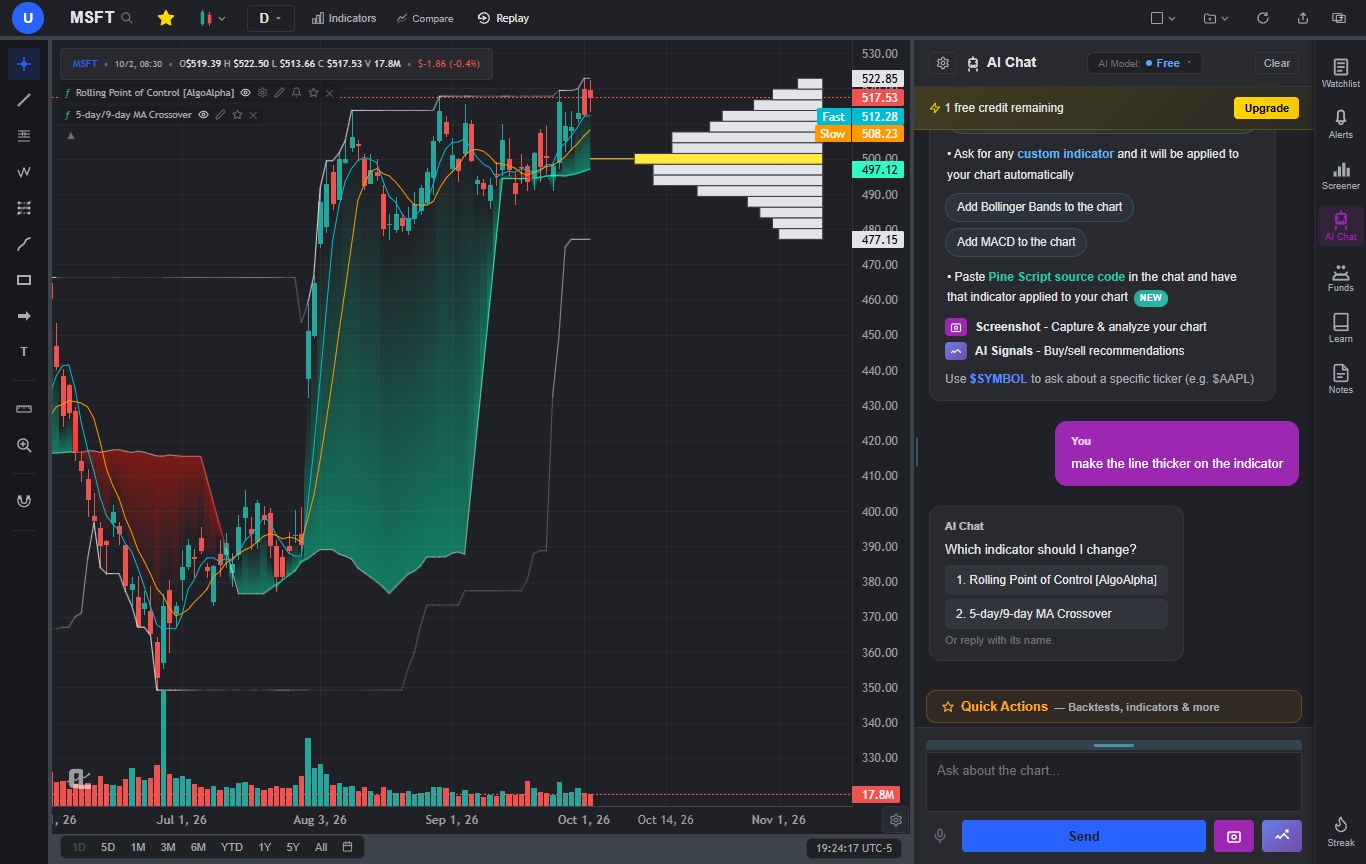
You can change a converted script by asking. Click the pencil, or just tell the AI Chat what you want, for example "add arrows to Rolling POC when the price crosses above the POC line" or "make the demand zones green and only keep the last 10". The AI edits your original Pine source and changes only the lines it needs to. When we ran that exact POC request, two lines were added and the other 102 lines of the script stayed byte-for-byte the same. Before an edit is kept, it's checked to make sure it compiles, still draws everything the original drew, and actually changes something you can see. If it can't do the change cleanly, it says so and leaves your indicator alone. Every change is listed in the pencil dialog with an Undo button.
Name the indicator in your message if you have several on the chart. If the AI can't tell which one you mean, it asks.
Alerts from a script's own alert conditions
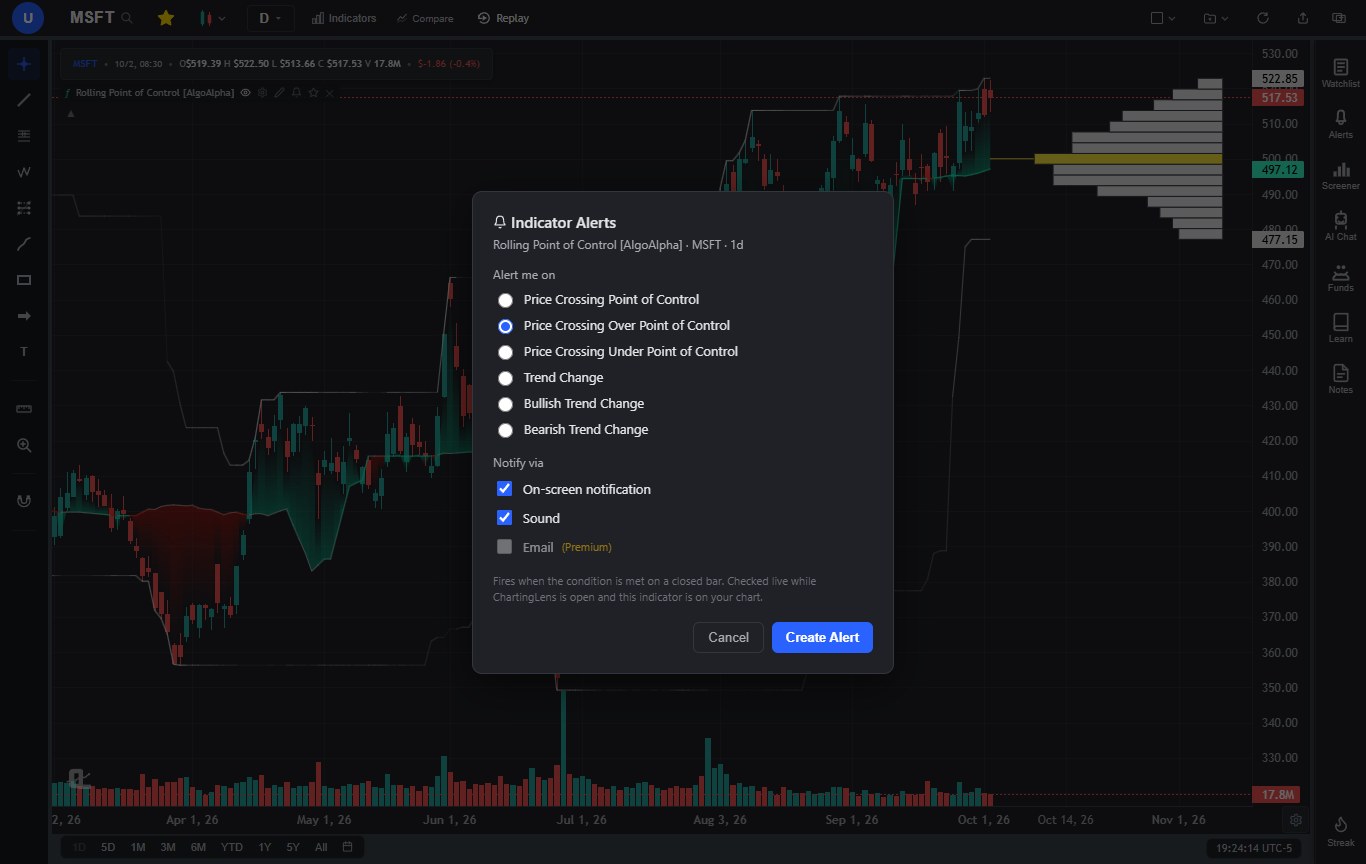
Many published scripts define their own alerts with alertcondition(), things like "Price Crossing Over Point of Control", "Bullish Trend Change" or "Volume Spike". In ChartingLens, the bell on the script's legend lists every one of them by name. Pick one, choose on-screen, sound and (on Premium) email, and the alert fires when that condition is true on a closed bar. If the script wrote its own alert message, that message is what you receive, with {{ticker}}, {{close}} and {{interval}} filled in. Scripts that draw buy and sell markers can alert on buy signals, sell signals or both.
Scan the market with your own script (My Script)
Saved a script you trust? Open the Stock Screener and switch to My Script Premium. Pick the script, a market (US exchanges, ten international markets, crypto pairs, or one or all of your watchlists) and a timeframe from 15-minute to weekly, then decide what counts as a match: a buy or sell signal on the latest bar or within the last few bars, a plotted value that just became true, a shape, a table or label text, or one of the script's alert conditions. Min and max price and volume filters keep the results tradeable. A full US scan takes a minute or two, and results export to CSV or copy as a symbol list. It runs in your browser, so keep the tab open until it's done. Coming from another platform? The migration guide covers bringing your scripts and watchlists across.
6. The AI Assistant, Tool by Tool
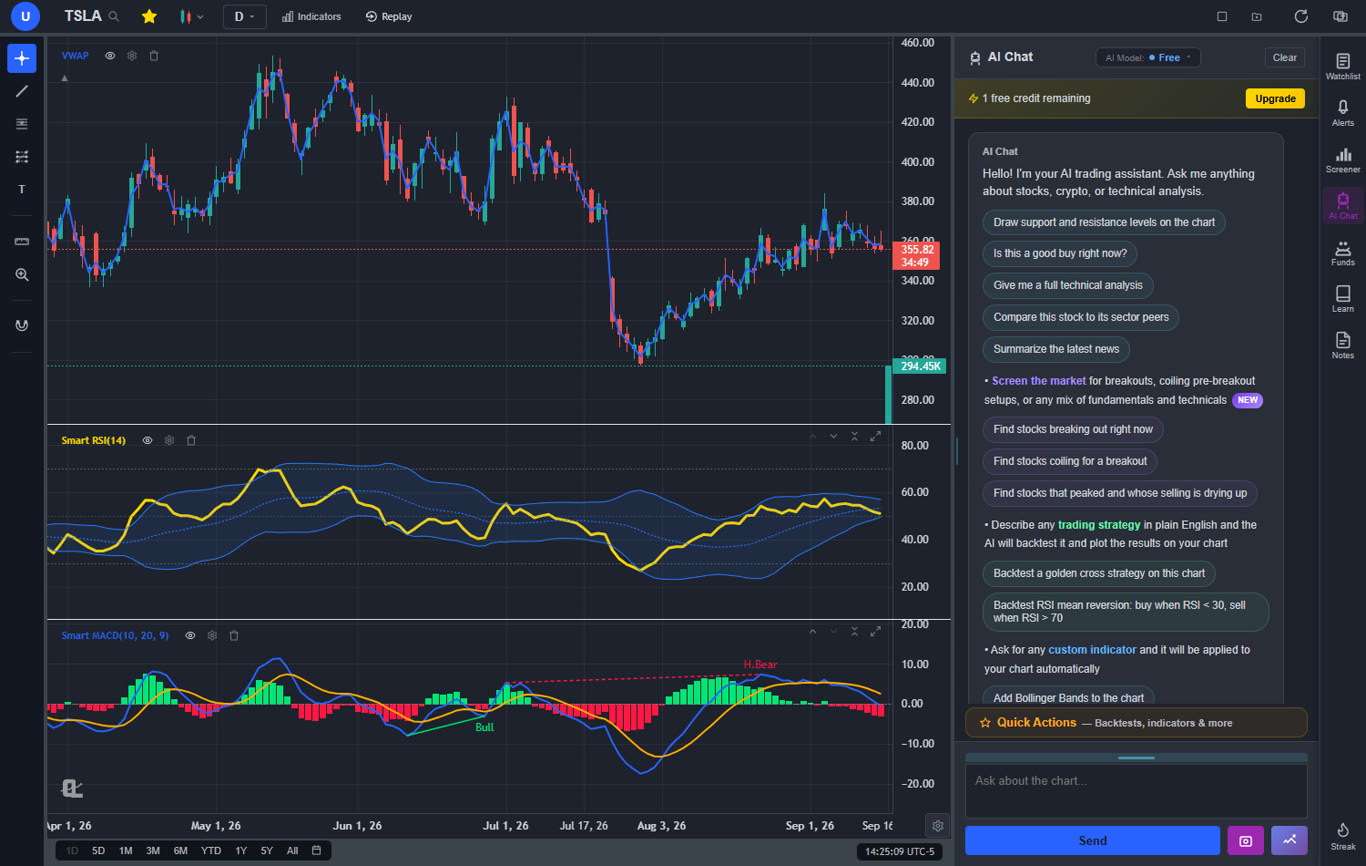
The AI Chat on the right sidebar is a mature, AI-first feature set rather than a bolt-on chatbot: it reads your chart, uses real market data, and can operate the platform for you. You talk to it in plain English. There are two models. The free model handles charting, indicators and platform questions, and the Premium model adds live web search for news and earnings plus the heavier research tools.
What you can ask it to do
| Ask for | Example prompt | Plan |
|---|---|---|
| A read on a stock | "Is NVDA a buy here?" "I bought TSLA at 180, hold or trim?" | All |
| Support and resistance drawn on the chart | "Draw support and resistance" | All |
| A built-in indicator | "Add RSI" "Add Bollinger Bands" | All, no credit |
| A custom indicator from a description | "Color bars red when RSI is above 70 and volume is rising" | Premium |
| An edit to an indicator on the chart | "Add arrows to Rolling POC when price crosses the POC line" | Premium |
| A backtest in plain English | "Backtest a 9/21 EMA cross with a 5% stop on the daily" | Presets all, custom Premium |
| The best signal strategy for this chart | "Give me an indicator that has buy and sell signals" | Premium |
| A trade plan with position size | "Give me a 3:1 trade on AMD risking 2% of a $10k account" | Premium |
| A market screen | "Mega cap Nasdaq stocks making a new 30-minute high" | Premium |
| A pattern scan | "What stocks have a double top on the 1h chart?" | Premium |
| A watchlist review | "Look at my Growth watchlist, which ticker is the best opportunity?" | Premium |
| A watchlist ranked by a fundamental | "Rank my watchlist by short interest" | Premium |
| Peer comparison | "Compare this stock to its sector peers" | All |
| News and why a stock moved | "Why did NVDA drop today?" | Premium model for live search |
| An alert | "Alert me when AAPL hits 200" "Tell me when RSI drops below 30 on the hourly" | Price all, indicator Premium |
| Chart and watchlist changes | "Switch to the 5m" "Open NVDA" "Add AMD to my watchlist" "Take all the indicators off" | All, mostly no credit |
| Screenshot analysis | Camera button: "Do my drawings look right?" | Premium |
| A lesson | "Teach me fair value gaps" | All |
A few behaviors worth knowing. Direct questions get the verdict first and the reasoning after. Tell it your entry price and you get hold, trim or sell guidance anchored to that price instead of a fresh-entry analysis. Name up to 20 tickers in one question and it compares all of them, not just the first. Ask for a full strategy and it runs the backtest without you having to type the word "backtest". Use $SYMBOL (like $AAPL) to point a question at a ticker that isn't on your chart.
AI Settings, Quick Actions and voice
- AI Settings (the gear in the chat header): your experience level, the markets you trade, account size and risk per trade (used for position sizing in trade plans), which asset class Buy Signals shows, minimum price, volume and market cap for ideas, whether chart changes apply automatically or ask you first, and short, standard or detailed answers.
- Quick Actions (just above the chat box): a library of ready-made prompts for analysis, screening, backtesting and indicators. Star the ones you use, or save up to 12 of your own.
- Voice: click the microphone and talk. The text lands in the box for you to check before sending. Works in Chrome, Edge and on Android.
- Credits: one per message. Free gets 1 a day (2 on the first day), Premium 20, Pro unlimited. If the AI fails or your request runs into a Premium feature, the credit comes back. Platform questions, symbol and timeframe switches, built-in indicators, removals and script conversion are free.
Free accounts get a daily AI credit, and platform questions are always free.
7. Finding Trades
AI Buy Signals and the Signals page
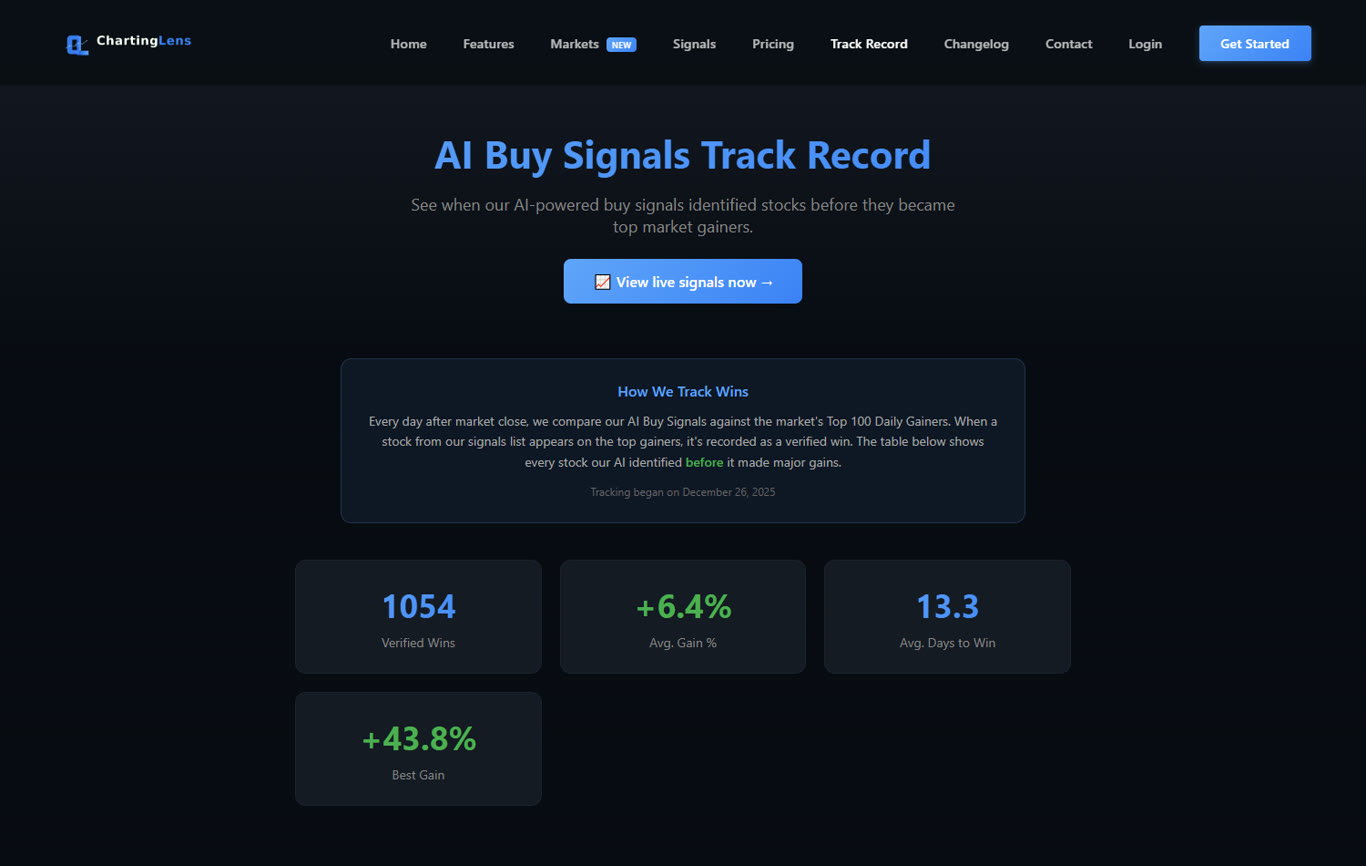
Click Buy Signals at the bottom of the AI Chat (or ask "show me buy signals") for a ranked list of stocks our algorithm has flagged across a universe of roughly two thousand liquid US names. Each is either in an active trade or being watched for an entry, with a target, a stop, a maximum holding period and a historical win rate for that ticker. Free accounts see 3 signals. Premium adds fresh scans and the crypto and forex signal sets. The full board lives at chartinglens.com/signals, with Watching, Active and Resolved columns, and its Stocks / Crypto / Forex switch follows your AI Settings. Closed winning trades are listed on the track record page.
The Stock Screener
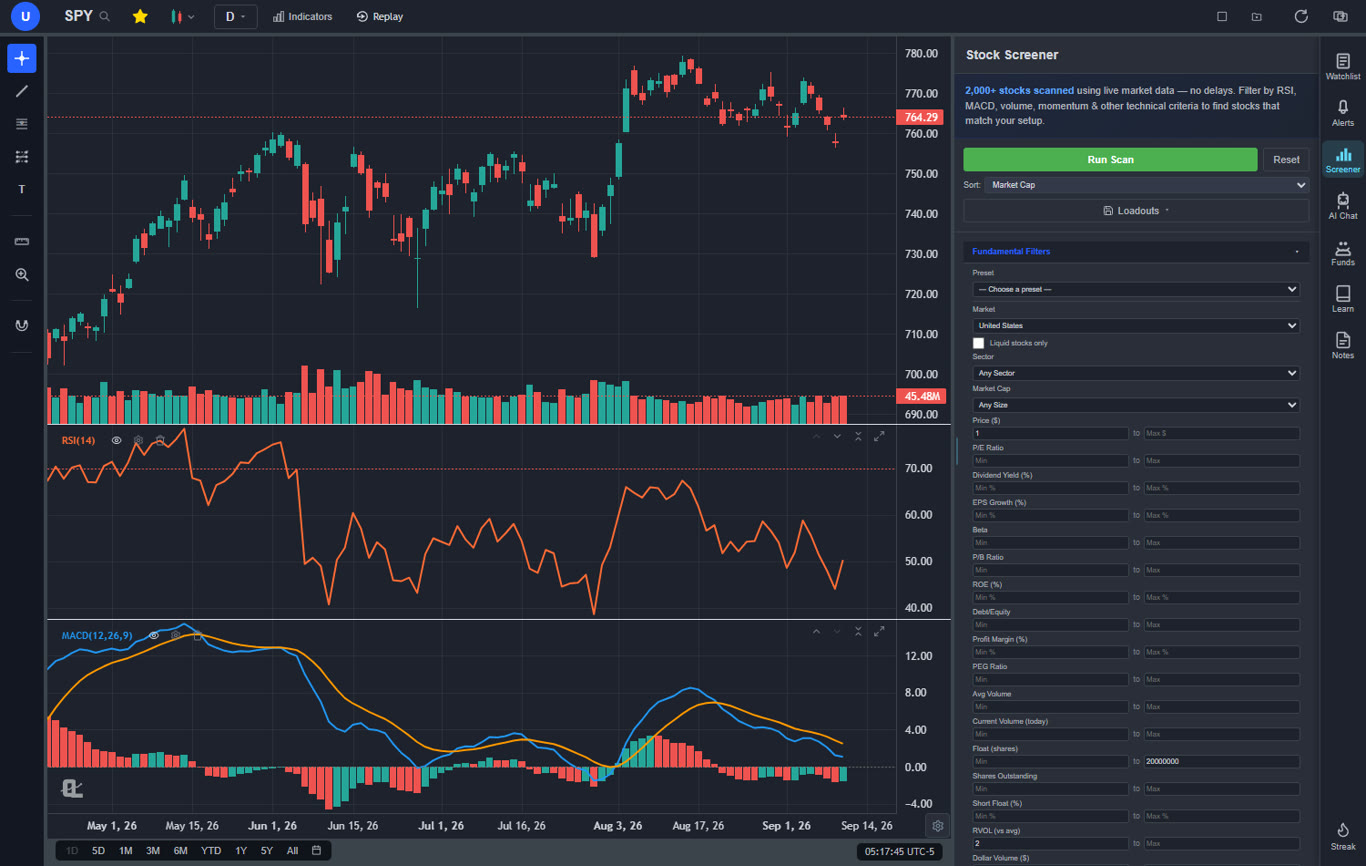
Open Screener on the right sidebar. The Filters tab screens the US or one of ten international markets (ASX, Hong Kong, London, Toronto, Germany, Paris, India, Japan, Singapore and New Zealand) with fundamental filters (price, market cap tier, sector, P/E, dividend yield, EPS growth, beta, ROE, margins, debt to equity, PEG, float, short float, relative volume, dollar volume, gap and pre-market move, earnings dates) and technical filters on daily, weekly or monthly bars (MACD, Stochastic, RSI, ADX, moving-average crosses, price versus a moving average, Parabolic SAR, 52-week highs and lows, Bollinger Bands, volume surges, gaps, ATR, candlestick patterns, pullbacks and selling exhaustion). The Chart Pattern filter Premium adds double tops and bottoms, head and shoulders, triangles, wedges, channels and flags.
Seventeen presets fill the filters in one click, from High RVOL Gappers and Short Squeeze Candidates to Dividend Income, Undervalued Large Caps and Quality Compounders, and you can edit any of them. Loadouts save your own filter setups by name. Free shows the top 10 matches, Premium shows every match and adds two-timeframe mode, so you can require a bullish MACD on the daily and the weekly at once. Our stock screener guide goes deeper on building screens.
Screens and pattern scans by asking
On Premium you can skip the form and describe a screen to the AI Chat: "oversold large caps with no earnings this week", "dividend stocks under 15 P/E on the LSE", "find stocks breaking out right now". It maps every filter you named, tells you if one can't be screened, and lists the matches. For chart patterns, ask "which stocks have a bull flag forming?" or "scan my watchlist for double bottoms" and the Pattern Screener runs live detection across 2,000+ liquid US stocks (or your watchlist) on any timeframe from 15-minute to weekly, tagging each hit bullish or bearish and "forming now" when it's completing on the current bars. Read up on the patterns themselves in our chart patterns guide.
Your watchlists
The Watchlist panel holds named lists with live prices, pre and post-market quotes and change columns, sortable by symbol, price or change. Paste a comma-separated list of tickers to import it in one go (prefixes and headers are cleaned up for you), and drag rows to reorder. Free keeps one list of up to 40 symbols, Premium 10 lists with no symbol cap, and Pro is unlimited. Tips on building a good one are in our watchlist guide.
Hedge fund holdings and Congress trades
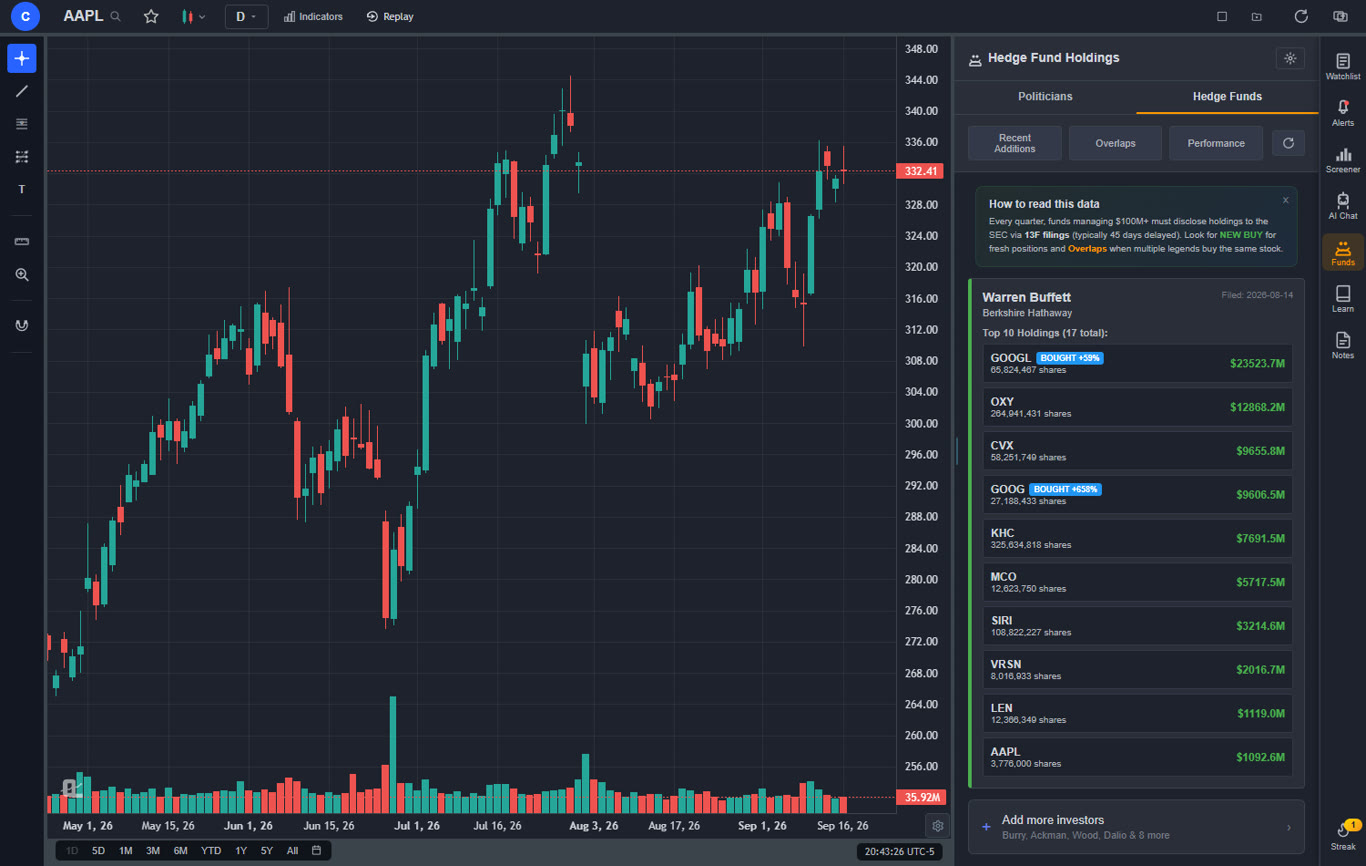
The Funds panel Premium follows 20 legendary investors and funds through their SEC 13F filings, including Warren Buffett, Michael Burry, Bill Ackman, Ray Dalio, Stanley Druckenmiller, Citadel and Renaissance Technologies. Each card shows the top holdings with NEW BUY, BOUGHT and SOLD badges against the previous filing, and the Recent Additions, Overlaps and Performance views show what changed, which stocks several managers are buying at once, and how each fund's picks have done since the filing compared with SPY.
Flip the toggle to Politicians Premium for every disclosed trade by the members of Congress you follow, refreshed from House and Senate filings every couple of hours, with a recent-trades feed, dollar-weighted overlaps (net buying, net selling or mixed) and the return since each disclosed buy. Our guide to tracking insiders and hedge funds covers how to use both.
8. Researching a Stock
Found something interesting? Here's where you check it before you commit.
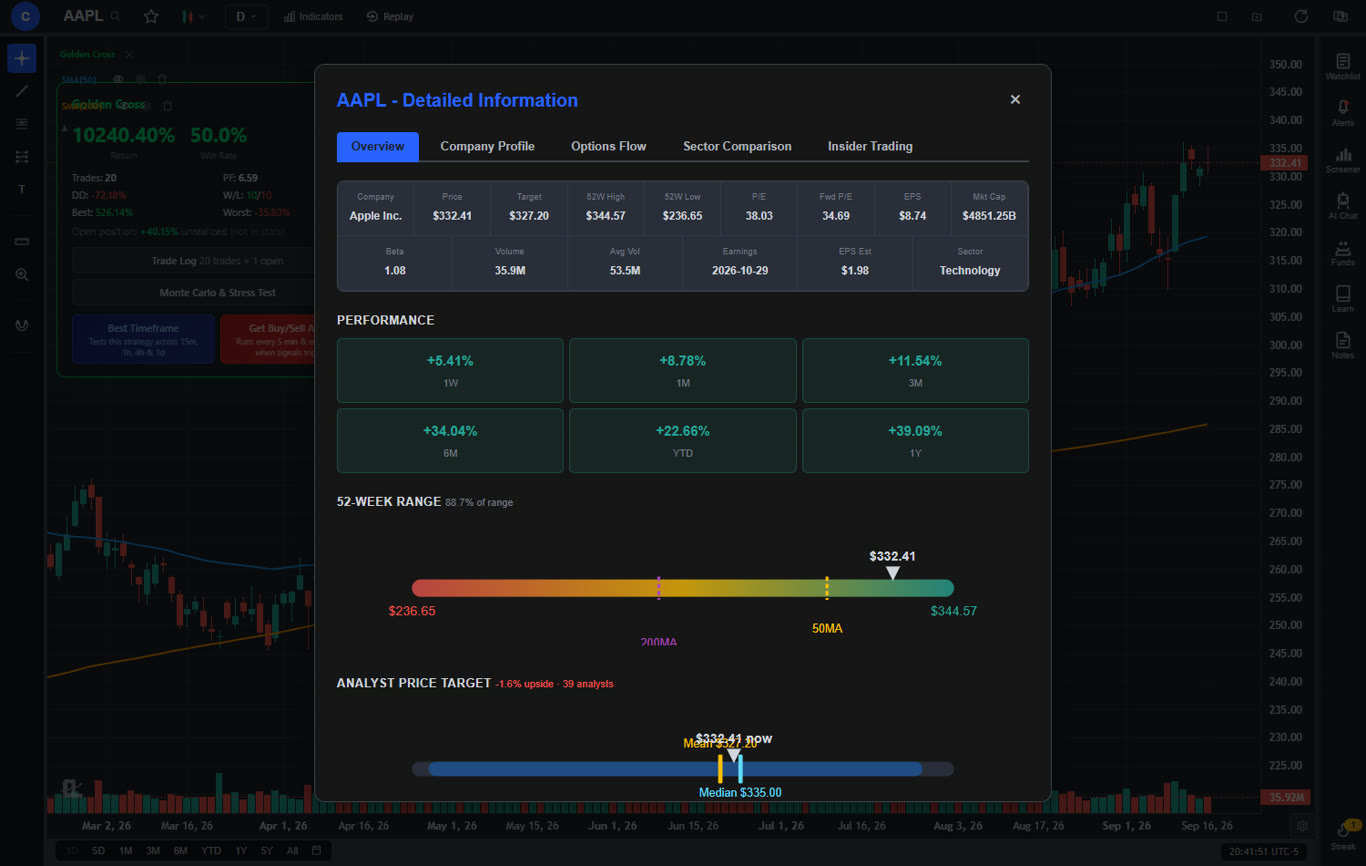
- Stock info box (top of the Watchlist panel): price, P/E, EPS, analyst target, the next earnings date and the CL Score. Show more opens quarterly financials, margins, ownership and short interest, the company profile, Options Flow (calls versus puts and the most active contracts), a sector comparison and the insider trading tab.
- CL Score Premium: a 0 to 100 rating of a stock's technical health that blends trend strength and momentum with valuation and analyst upside. Free accounts earn CL Score reveals from the daily streak.
- Insider trading (free): every SEC Form 4 buy and sell, with a 0 to 100 score for each insider based on their own track record and their P&L history. Open it from the Analytics panel under the chart or from Show more.
- News: ask the AI Chat "what's the latest on TSLA?" or "why did it gap down?". The Premium model searches the web live.
- Peers: "compare this stock to its sector peers" builds a table of market cap, forward P/E, price to sales, EV/EBITDA, margins, revenue growth, ROE and analyst upside, with a peer-median row and a verdict on whether the stock trades at a premium or a discount.
9. Backtesting and Testing Ideas
This is the institutional-grade strategy builder and backtesting engine at the heart of the platform, and it lives behind a chat box. Describe your rules in plain English (entries, exits, stops, targets, filters) and the AI writes the strategy, runs it on the chart's real history, draws every entry and exit on your chart, and shows return, win rate, number of trades, profit factor, maximum drawdown, win/loss ratio and best and worst trades, plus a trade log you can export to CSV. Entries fill at the next bar's open, the way a real order would, and stops and targets fill inside the bar at their level.
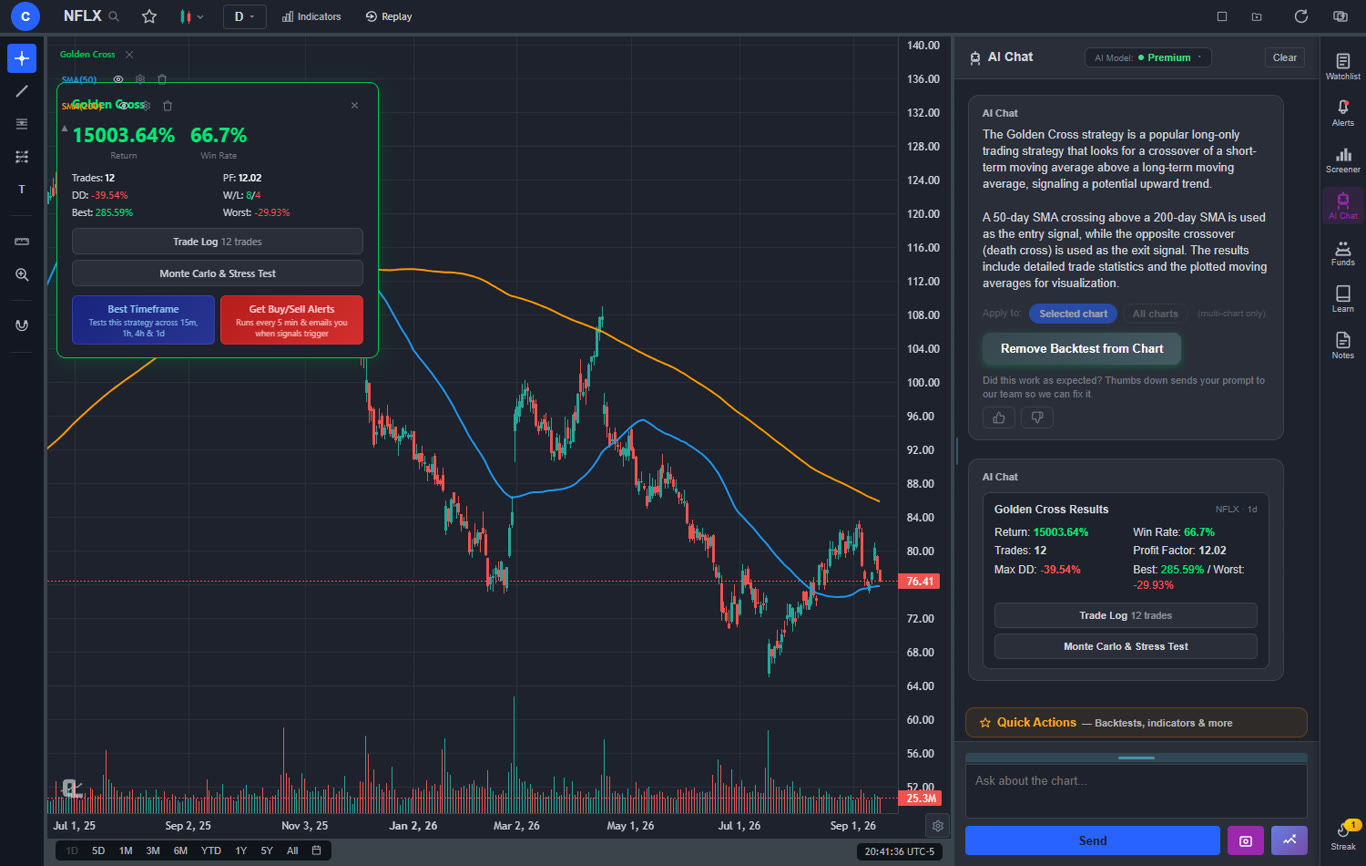
- Presets: golden cross, RSI mean reversion, MACD crossover, 20-day breakout, buy the dip and more sit under Quick Actions, Backtesting. They run on every plan (one credit each). Custom strategies are Premium.
- Find Best Timeframe: re-tests the strategy on 15-minute, hourly, 4-hour and daily bars and ranks them.
- Monte Carlo & Stress Test: 2,000 reshuffled runs of your trades plus stress scenarios such as removing your best 10% of trades, adding slippage, halving your winners and putting every loser first. It needs at least five trades.
- Signal Tournament Premium: ask "give me an indicator that has buy and sell signals" and seven classic strategies (EMA crossover, MACD cross, RSI mean reversion, Bollinger bounce, Stochastic cross, Supertrend flip and Donchian breakout) are backtested on your exact chart and ranked. Apply the winner in one click.
- Strategy Simulator: the simulator page tests an entry idea across the whole US stock universe, a basket of major crypto coins, or the major forex pairs at once, with a random-entry control group to keep you honest and side-by-side comparison of two runs.
More on doing this well in how to backtest a trading strategy.
10. Alerts: Every Type and Where It Runs
Open the Alerts panel (bell icon, right sidebar) and click "+", or right-click the chart at a price, or click the "+" on the price axis, or just ask the AI. Every alert has a trigger mode (once or every time), a timeframe where it matters, an optional expiry, and notification channels: on-screen, sound, and email Premium. The Alerts panel's History tab keeps the last 100 that fired.
| Alert type | How to set it | Plan | Where it's checked |
|---|---|---|---|
| Price above or below a level | Right-click the chart, the price-axis "+", the Alerts panel, or the AI | All | Servers, every 5 min (Premium and Pro); while the app is open (Free) |
| Indicator: MACD, Smart MACD, Stochastic, RSI, ADX, price versus a moving average | Alerts panel, or the "+" on an RSI, MACD, Stochastic or ADX pane | Premium | Servers, every 5 min |
| Trendline cross (price cross or candle close) | Select the trendline and click the bell on its toolbar | Premium | Servers, every 5 min |
| Strategy (golden cross, RSI mean reversion, MACD crossover, 20-day breakout, buy the dip, seasonal strategies and more) | Alerts panel, Strategy type | Premium | Servers, every 5 min |
| Custom indicator signals (buy, sell or both) | The bell on the indicator's legend | Premium | In your browser while the chart is open |
| A script's own alert conditions | The bell on the script's legend, then pick the condition | Premium | In your browser while the chart is open |
A few details that save people time:
- Indicator alerts can combine several conditions that must all be true at once, evaluated on candle close or live price, on timeframes from 1-minute to monthly.
- Candle-close trendline alerts ignore a wick through the line and only fire on a confirmed close on your chosen timeframe, which filters out a lot of false breakouts.
- Script and custom-indicator alerts only count closed bars, so a marker that flickers mid-bar can't fire them, and signals already on the chart when you arm the alert never fire. Keep the chart open on that symbol and timeframe.
- Email goes to Premium (10 alerts with email) and Pro (unlimited). In the ChartingLens app, alerts also arrive as push notifications when the app is closed.
- Limits: Free keeps 3 alerts, Premium 20, Pro unlimited. Alerts that have already fired still count until you delete them, so clear old ones from the panel.
11. Learn, Replay, Notes and Streaks
Learn
The Learn panel turns your chart into a classroom. Each lesson draws its example on real price as you read. The courses cover Trendlines, Support & Resistance, Chart Patterns and Fair Value Gaps, and the quizzes test what each lesson taught and explain every wrong answer. Lessons and quizzes are free. Practice on examples Premium drops you into a real historical setup in Replay and grades how you read it. If FVGs are new to you, our Fair Value Gaps guide is a good primer.
Bar Replay and paper trading
Replay Premium (top toolbar) rewinds any chart to a bar you click, a date you pick, or a random date you don't recognize, then plays it forward at 0.1x to 10x or one bar at a time. Place buy and sell orders with several stops and targets (partial quantities included, draggable on the chart), watch your P&L, and get a results window with win rate, profit factor and a trade log when you finish. Changing the symbol or timeframe ends the session. It's the closest thing to screen time without risking money, and our practice guide has a routine for it.
Notes
The Notes panel is a trading journal beside the chart. Notes are tagged with the symbol you're on, pinnable, searchable and saved to your account, and you can keep up to 20 templates for trade reviews, pre-market plans or weekly debriefs. A Take notes button inside every Learn lesson opens it alongside. Free keeps 3 notes of 5,000 characters, Premium 25 of 50,000, and Pro is unlimited.
Daily streak and digest
Opening ChartingLens checks you in for the day. The Streak rewards are 1 CL Score reveal at day 3, a Buy Signals reveal at day 7, two CL Score reveals and an extra AI question at day 14, and seven days of Premium at day 30. When you come back after a day or more away, a daily digest of what moved on your watchlist pops up.
12. ChartingLens on Your Phone
Open chartinglens.com in your phone's browser and you get a layout built for the screen: a bottom tab bar for the watchlist, alerts, screener, AI, funds, Learn, notes and drawing, panels that open full screen, touch drawing, legends that stay out of the way until you tap them, and Pine Script tables that shrink to fit or fold into a chip. The ChartingLens app for Android and iPhone adds push notifications for your price, indicator, trendline and strategy alerts on Premium and Pro, a home-screen widget with your watchlist, app-icon shortcuts, Face ID or fingerprint lock, haptics and native sharing. Multi-chart layouts and the new-window button are desktop features.
13. Free vs Premium vs Pro
Prices are in US dollars. Charting every market is free on every plan.
| Free | Premium $14.99/mo or $149/yr | Pro $29.99/mo or $299/yr | |
|---|---|---|---|
| AI credits | 1 a day (2 on day one) | 20 a day | Unlimited |
| Indicators per chart | 3 | Unlimited | Unlimited |
| Charts per layout / saved layouts | 1 / 1 | 3 / 10 | 3 / Unlimited |
| Watchlists | 1 list, 40 symbols | 10 lists, unlimited symbols | Unlimited |
| Alerts / with email | 3 / none | 20 / 10 | Unlimited |
| Server-side alert checks | - | Yes | Yes |
| Notes | 3 (5,000 characters) | 25 (50,000) | Unlimited |
| Stock Screener | Top 10 results | All results, two timeframes | Same as Premium |
| Custom indicators, backtests, Pine Script and thinkScript, AI screens, Pattern Screener, My Script | - | Yes | Yes |
| Bar Replay, extended hours, custom timeframes, CL Score, hedge funds and Congress, crypto and forex signals | - | Yes | Yes |
Pro has every Premium feature and removes the caps. There's no checkout trial, but a 30-day streak earns a week of Premium. Upgrade, manage billing or cancel from your account page at any time; cancelling keeps your paid features until the end of the period, and nothing you saved is deleted.
Common Questions From Users
These are the questions people actually send us, answered.
Related Articles
Open Your First Chart
Sign up free, type a ticker, and ask the AI Chat for a quick read. It takes about a minute.
Free plan · Premium $14.99/mo · Cancel anytime